SYM POS

A WALKTHROUGH OF REAL RESTAURANT WORK

See the whole shift, one workspace at a time.

Explore actual SYM POS screens with synthetic evaluation data. Follow an order from the floor to preparation, payment and management review, then try the open-source application yourself.

Prefer a guided walkthrough?A public hosted demo is not configured yet. Use Contact Us to request a walkthrough or discuss your own evaluation installation. The screenshots below come from the actual application, not a simulated interface.

01 — THE DEMO JOURNEY

Start with a table and a clear order

Sign in with the appropriate role, select a table session or use the supported takeout workflow, and add menu items. Review quantities, notes and modifiers before sending the order into preparation.

  • Select the correct table and guest context
  • Add sample food and drinks from the menu
  • Review order detail before saving
SYM POS · Product preview
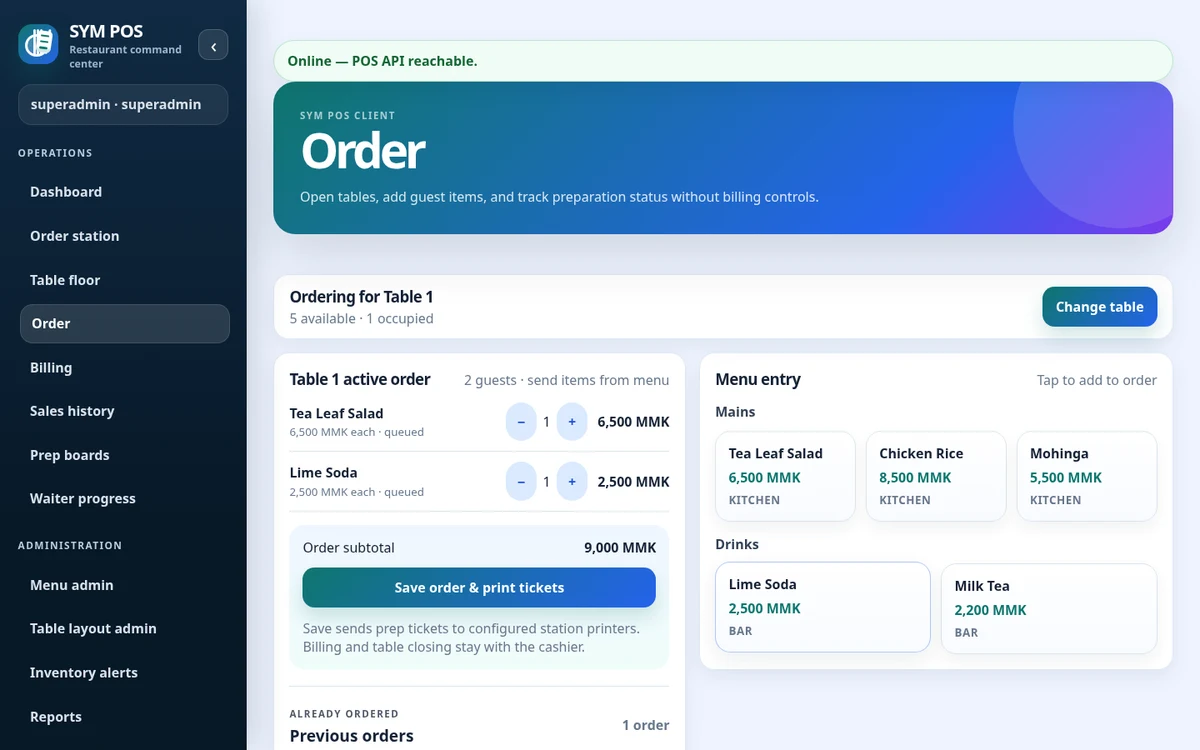
Actual SYM POS demo: Start with a table and a clear order
Actual SYM POS screen · Synthetic evaluation dataOpen full-size

02 — THE DEMO JOURNEY

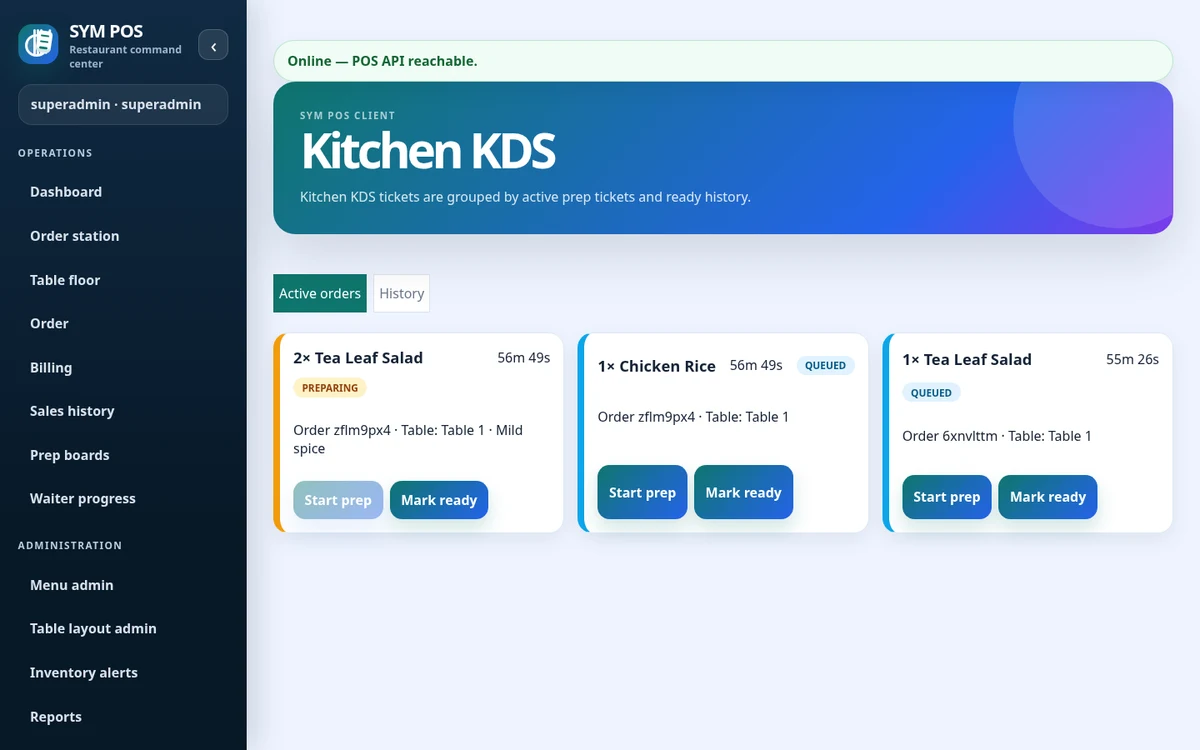
Follow the order into preparation

Open the kitchen or bar view to see items assigned to that station. Move a ticket into preparing and then ready. Review the progress from the floor workspace to understand how the teams share local state.

  • Check kitchen and bar routing
  • Read quantities and item notes
  • Compare active work with ready history
SYM POS · Product preview
Actual SYM POS demo: Follow the order into preparation
Actual SYM POS screen · Synthetic evaluation dataOpen full-size

03 — THE DEMO JOURNEY

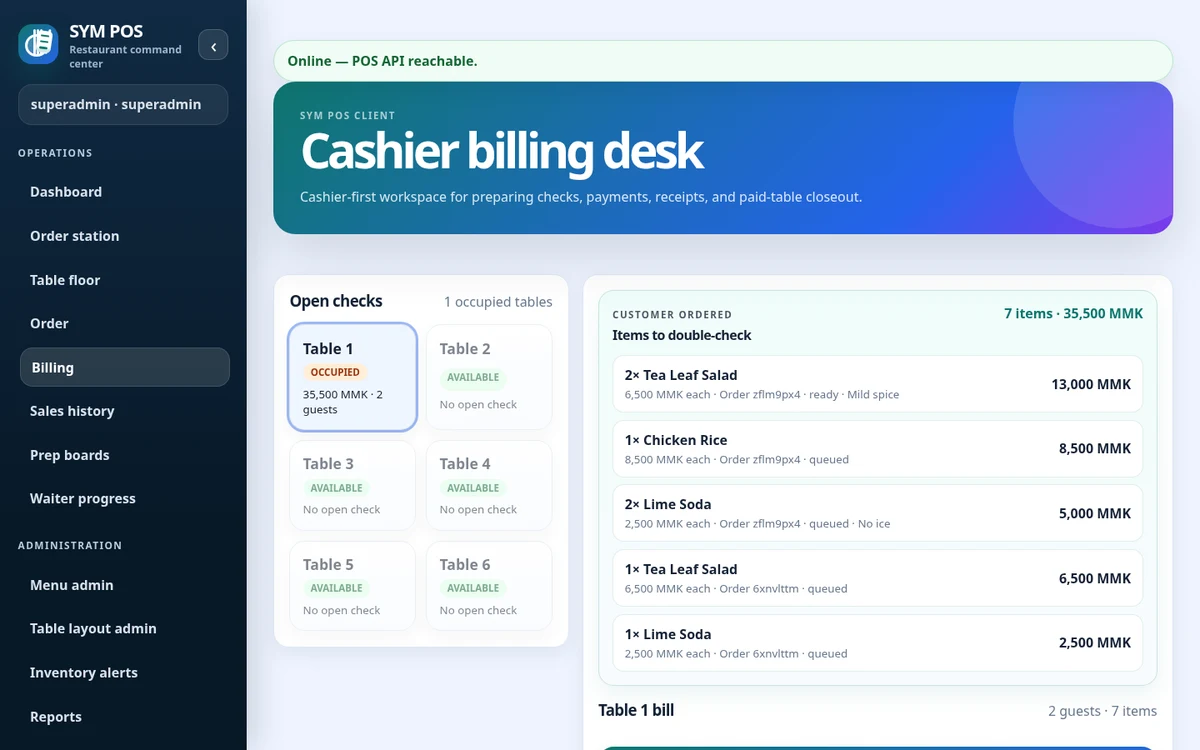
Review the bill and record collection

Generate the guest bill and inspect its calculation. Try supported splits, discounts and configured tax with sample data, then record a payment and review the receipt before closing a paid table.

  • Inspect bill lines and totals
  • Record a sample payment
  • Review the receipt and balance before closeout
SYM POS · Product preview
Actual SYM POS demo: Review the bill and record collection
Actual SYM POS screen · Synthetic evaluation dataOpen full-size

04 — THE DEMO JOURNEY

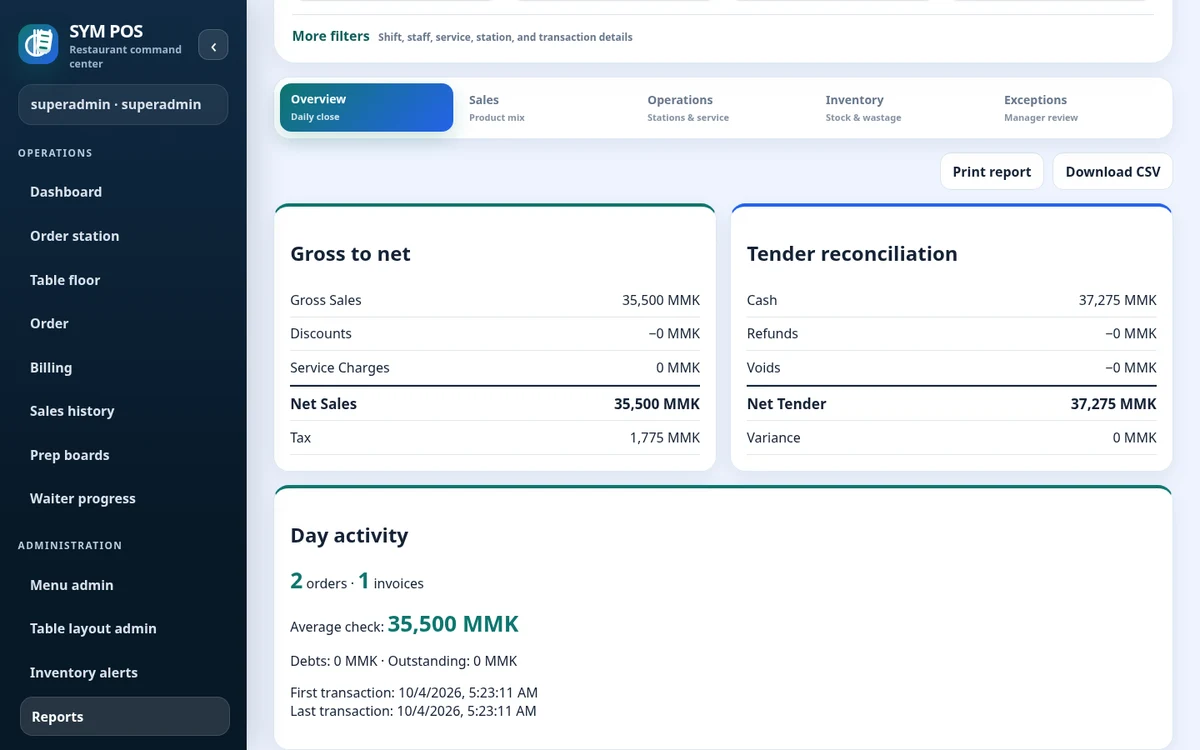
Bring the shift into management view

Open reports with an authorized role, choose the restaurant’s reporting period and inspect daily activity. Continue into product mix, station context, menu administration and audit history to see the back-office workflow.

  • Check reporting dates and timezone
  • Review daily and item/category activity
  • Try a supported CSV or printable export
SYM POS · Product preview
Actual SYM POS demo: Bring the shift into management view
Actual SYM POS screen · Synthetic evaluation dataOpen full-size

Evaluate locally, then plan production.

Start with the installation instructions in the product repository. In-memory mode is useful for a disposable walkthrough and loses data when the process stops. A real restaurant installation needs persistent PostgreSQL, secure accounts, backups and a reliable local network.

OPEN SOURCE. BUILT IN THE OPEN.

A restaurant platform you can explore, run and help improve.

SYM POS is an open-source restaurant operations project. Explore the implementation, follow its development and use the documentation to evaluate a local installation. If it’s useful to you, give the project a star on GitHub.

OPEN SOURCE FOR RESTAURANT OPERATIONS

Explore the project.
Build your restaurant’s next chapter.

Start with the source and documentation. Contact us for help with a local installation, workflow configuration or custom development.