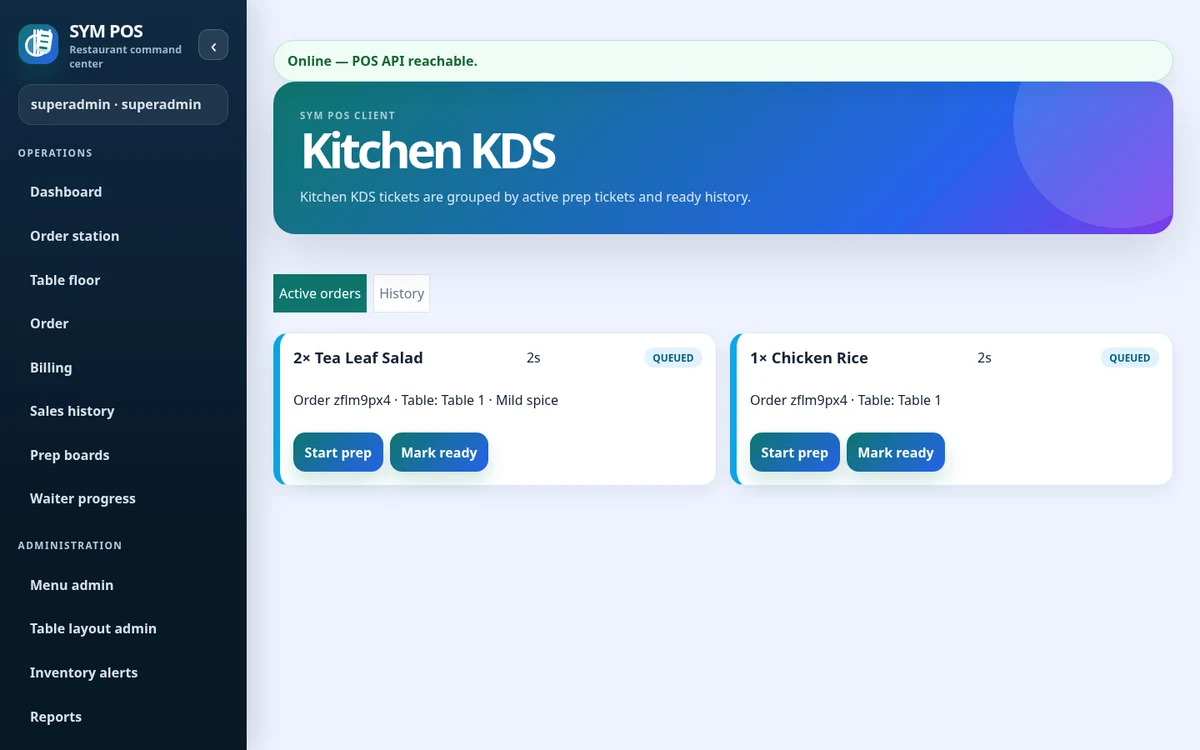
Kitchen and bar screens load station-specific active queues and history. Menu preparation station assignments determine where items appear, so each team can focus on its own work.
Menu item preparation stations connect the order to the appropriate queue. A kitchen item and a bar item in the same guest order can appear at their respective stations without requiring separate order entry.
Separate kitchen and bar views
Station assignments configured in menu administration
Browser access over the restaurant LAN
SYM POS · Product preview
Actual SYM POS screen · Sample evaluation dataOpen full-size
02 — KITCHEN & BAR
Item detail that travels with the order
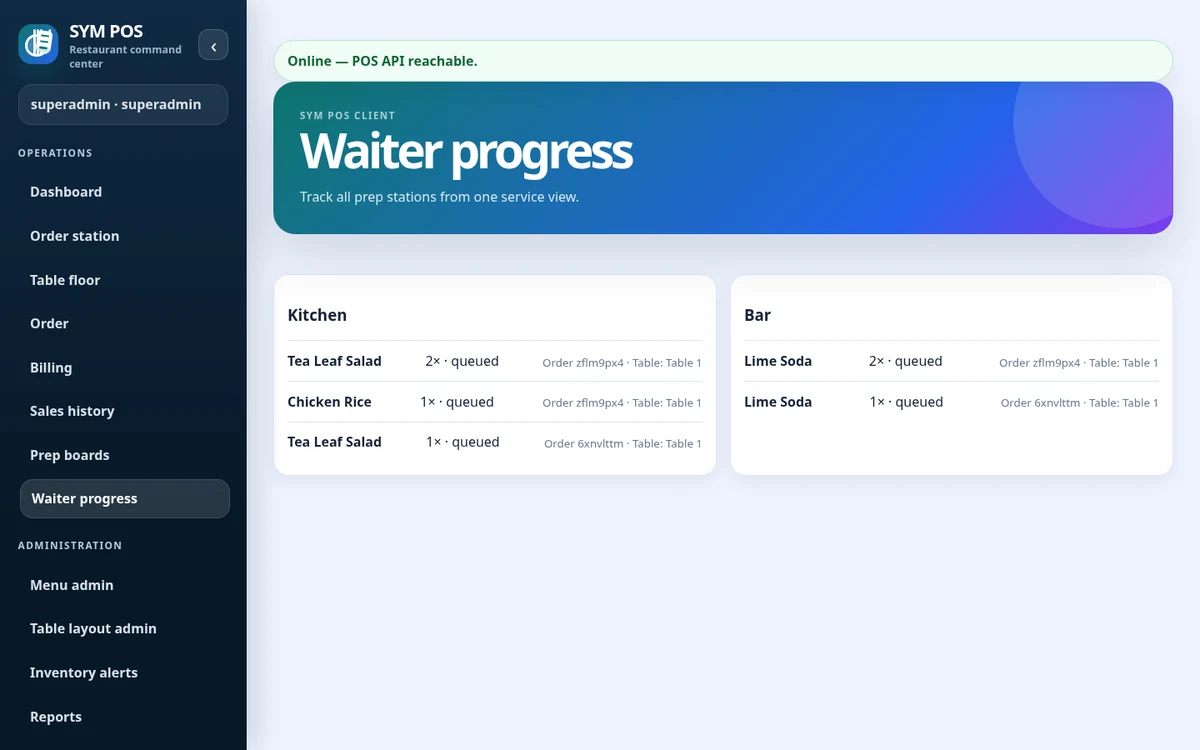
Quantities, order item notes and preparation status help staff understand what is needed. Operators can move an item to preparing or ready; the floor can review that preparation progress.
An item can move from its queued state into preparing and then ready. Waitstaff can review progress from their own workspace, giving the floor a shared picture of what the preparation team has updated.
Quantities and item notes alongside tickets
Preparing and ready actions at item level
Progress visible to the floor
SYM POS · Product preview
Actual SYM POS screen · Sample evaluation dataOpen full-size
03 — KITCHEN & BAR
Displays and configured printers
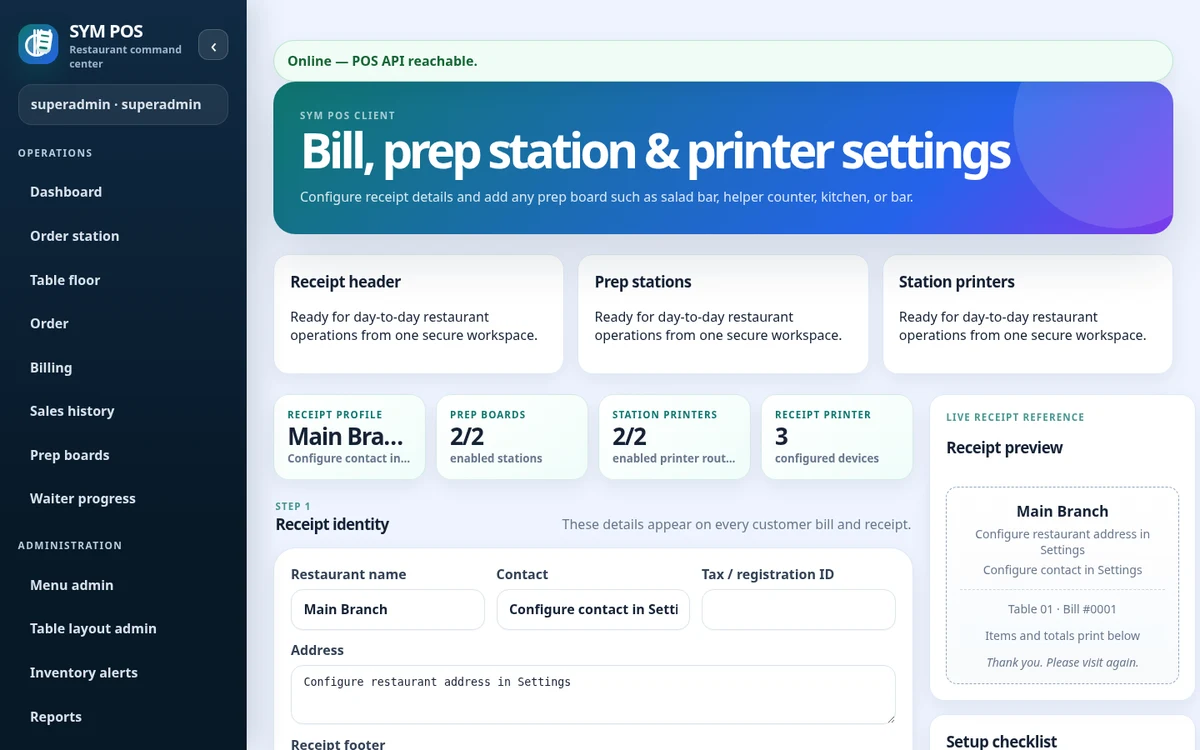
Use a supported browser on a restaurant display connected to the LAN. Preparation ticket printing is available through configured printer transports. Test station routing and printer setup with your own devices before service.
Preparation displays and paper tickets are two ways to present the same restaurant workflow. Select the configured printer for each station and verify the physical output before relying on it during a shift.
Receipt and preparation destinations configured separately
Windows queues, TCP printers and simulator transport
Actual printer compatibility verified on your hardware
SYM POS · Product preview
Actual SYM POS screen · Sample evaluation dataOpen full-size
04 — KITCHEN & BAR
Keep active work separate from history
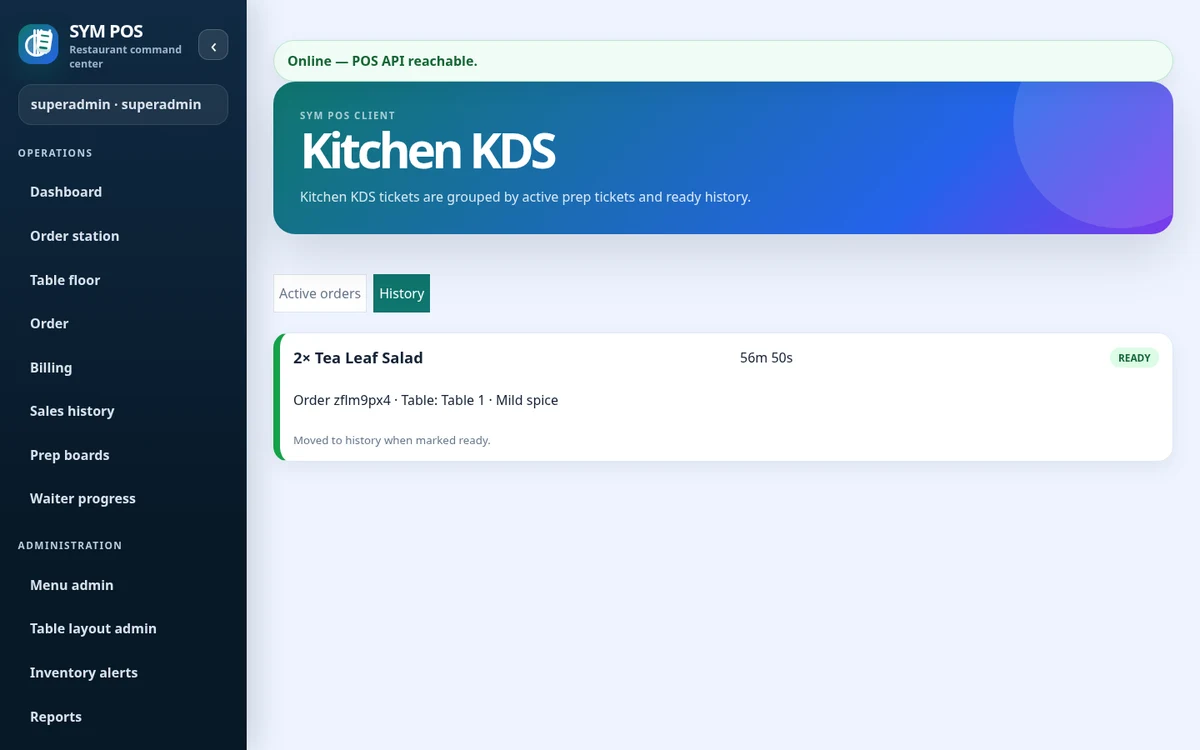
Ready items move out of the active queue and can be reviewed in history. Use the active screen for current work and the history view to check completed preparation rather than letting finished tickets crowd the queue.
Separate active and history views
Kitchen and bar retain their own station context
A ready item is not the same as a settled bill
SYM POS · Product preview
Actual SYM POS screen · Sample evaluation dataOpen full-size
Try the workflow with your own setup in mind.
Explore the source and product guide, then evaluate with sample data before planning production use. If you need help with installation, configuration or a custom workflow, contact us with your restaurant and device requirements.
A restaurant platform you can explore, run and help improve.
SYM POS is an open-source restaurant operations project. Explore the implementation, follow its development and use the documentation to evaluate a local installation. If it’s useful to you, give the project a star on GitHub.